Before you start: accounts and materials
SciENcv is NCBI's free tool for building structured researcher documents. It stores information you can reuse, then formats a document for the agency you select. For NIH, the biosketch has two parts: the Common Form records your background and products; the NIH Supplement explains your qualifications, honors, and contributions. Both are completed in one interface and exported together. The NIH forms page explains this combined workflow.
| Account or resource | What you use it for |
|---|---|
| My NCBI / SciENcv | Store and edit the biosketch. Keep using the account that already contains your documents and bibliography. |
| ORCID iD | Identify you consistently. The same iD must appear in your biosketch and be linked to your eRA Commons profile. |
| eRA Commons | Maintain the NIH profile used for submission checks. Ask your institutional account administrator for help if you need access. |
| My Bibliography | Keep publication records available for selection in SciENcv; linked ORCID records are another source. |
Have your current CV, education and appointment dates, publication identifiers, honors, and a draft personal statement ready. Check your institution's research security training requirements before the final certification step.
Step 1. Sign in to your existing My NCBI account
- Open the official SciENcv website and sign in. Use the login method you normally use for the NCBI account holding your work.
- If you arrive at the My NCBI dashboard, find the SciENcv panel and select Manage SciENcv. A new account may instead show a link to create its first document.
- Check the existing document list and bibliography. If expected documents are missing, confirm which account you entered before starting over.
Different sign-in buttons can lead to different NCBI accounts if they were never linked. A familiar email address alone does not prove you are in the account holding your old biosketch. NCBI's account-linking instructions explain how duplicate accounts can cause ORCID errors.
Step 2. Connect ORCID, My NCBI, and eRA Commons
Link ORCID to the NCBI account you use for SciENcv
- While signed in to that account, select your username in the upper-right corner, then Account settings.
- Find Linked Accounts and select Add account.
- Search for ORCID, choose it, and follow the ORCID sign-in and authorization screens.
- Return to NCBI and confirm that ORCID appears in Linked Accounts. You can also link your eRA Commons sign-in here if it is not already listed.

Figure 1. Use Linked Accounts in the existing NCBI account. A connection here makes your ORCID available to SciENcv.
Source: NCBI Insights, ORCID account-linking instructions. Select the image to view it at full size.
Link that same ORCID to your eRA Commons Personal Profile
- Sign in to eRA Commons and open Personal Profile.
- Select Create or Connect Your ORCID iD.
- Sign in to the same ORCID account and authorize the connection.
- Return to the profile and confirm that the correct ORCID is displayed.
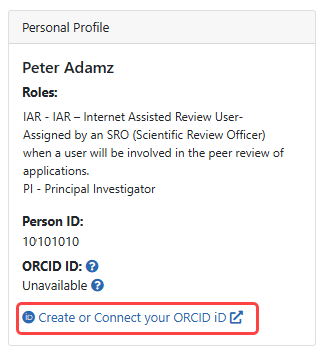
Figure 2. The eRA Commons connection is a separate step from linking ORCID to My NCBI.
Source: eRA Commons help, ORCID linking instructions. Select the image to view it at full size.
Check the document too. In Step 4, verify the ORCID inside the actual biosketch. Account linking does not guarantee every previously created document has the correct value. SciENcv also allows manual ORCID entry; this does not replace linking that iD to eRA Commons. See the official SciENcv updates.
Step 3. Create the correct NIH Common Form document
- On the SciENcv document list, select + New Document.
- Give the file a useful name, such as NIH R01 — October 2026 — Your Name. This is a practical way to distinguish project versions.
- In Document type, choose NIH Biographical Sketch Common Form.
- Choose a data source, then select Create.
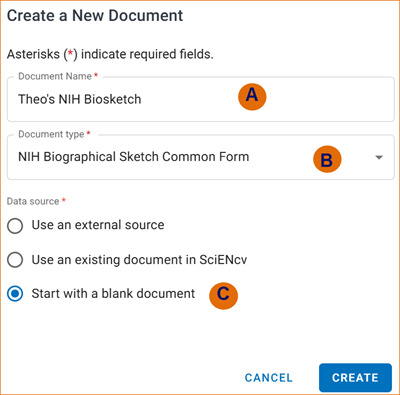
Figure 3. A is the document name, B is the format, and C is the starting data source. The correct NIH Common Form is already selected in this example.
Source: NCBI SciENcv Help Manual, updated May 8, 2026. Select the image to view it at full size.
Choose the exact Common Form option. A legacy option labeled NIH Biosketch, an NSF biosketch, or a PREVIEW document is not the NIH Common Form required for current submissions. The NIH Supplement appears within the NIH Common Form workflow; you do not need to find a separate blank supplement template.
- Start with a blank document: enter your information section by section. Existing My Profile information may prefill fields, so still review them.
- Use an existing document in SciENcv: create a copy from a compatible document, then tailor it for the application. Check every transferred field.
- Use an external source: import available data from linked ORCID records. Imported content still needs review for missing dates, incomplete records, and relevance.
A saved CV or Word file is useful as a reference while you type. It is not an automatically compliant NIH biosketch. NIH requires the final form to be prepared in SciENcv; the official instructions also require careful review when transferring an existing document.
Step 4. Check identifying information and your primary appointment
Open the editing control beside Identifying Information, Organization and Location. Review your name, current position, primary organization, location, appointment dates, and Persistent Identifier (PID). For NIH, the PID is your ORCID iD.
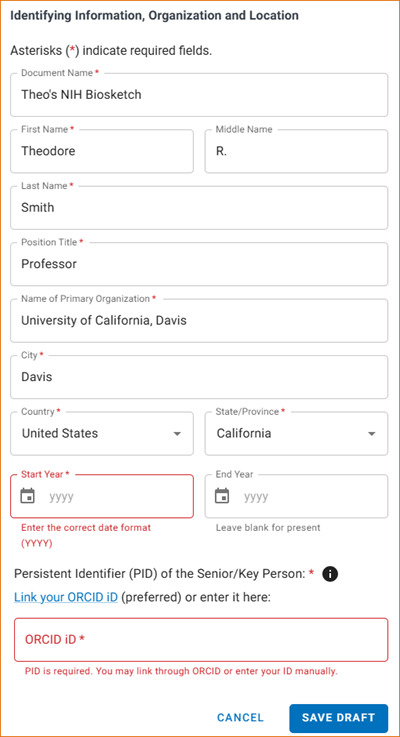
Figure 4. Required fields are marked with an asterisk. The ORCID belongs to the investigator whose biosketch this is.
Source: NCBI SciENcv Help Manual, updated May 8, 2026. Select the image to view it at full size.
Confirm that the 16-character ORCID matches the iD linked in eRA Commons, including a final capital X if your identifier ends with one. If you are a delegate, check the account owner's identifier especially carefully. NCBI provides illustrated instructions for correcting an incorrect PID.
The Save Draft control lets you keep partially completed information. It does not mean all required fields are complete: the warning icon disappears only after the missing fields are filled. Do not add home addresses, personal phone numbers, or other unrelated personal details to the biosketch.
Step 5. Enter education, training, and appointments
Professional Preparation
Add your degrees and training as separate entries. Include your initial professional degree or bachelor's degree and applicable postdoctoral and fellowship training. For each record, check the institution, location, degree or training type, field of study, start date, and completion or expected completion date.
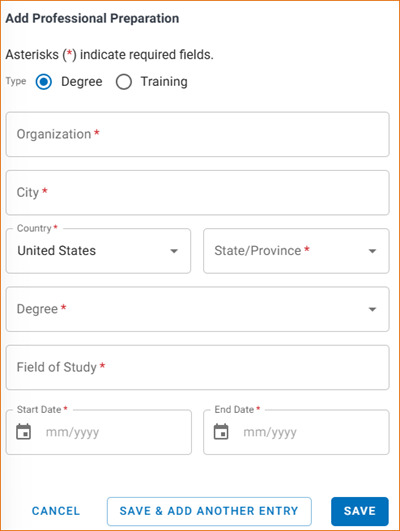
Figure 5. Choose Degree or Training for each entry. Save & Add Another Entry lets you continue without reopening the form.
Source: NCBI SciENcv Help Manual, updated May 8, 2026. Select the image to view it at full size.
SciENcv sorts these records in reverse chronological order by start date. Review imported dates against your CV rather than assuming the order is correct because the table looks complete.
Appointments and Positions
Add your professional appointments and check the Primary appointment or position box for your primary role. In SciENcv, this moves the entry to the top and populates the identifying-information section.
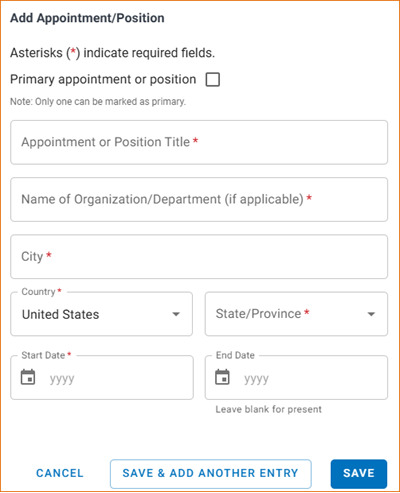
Figure 6. Verify the primary appointment before reviewing the organization at the top of the document.
Source: NCBI SciENcv Help Manual, updated May 8, 2026. Select the image to view it at full size.
NIH's rules include titled positions whether paid or unpaid, full-time, part-time, or voluntary, including adjunct, visiting, and honorary roles. The instructions specify a three-year reporting period for domestic and foreign professional appointments outside the primary organization. Follow that scope in the Common Form instructions; do not apply a blanket three-year cutoff to your education and entire career history. Ask your research office about ambiguous appointments or disclosure questions.
Step 6. Select publications and other research products
The NIH Common Form has two product lists: up to five products closely related to the proposed project and up to five other significant products. These are limits, not targets you must fill. Choose the records that best demonstrate the expertise needed for your role.
- Open the product-selection dialog for the list you are working on.
- Use the My Bibliography tab or the ORCID tab when linked records are available.
- Select the records to include, check the selection count, and continue to save your choices.
- Repeat for the other product list, then inspect both lists in the document.
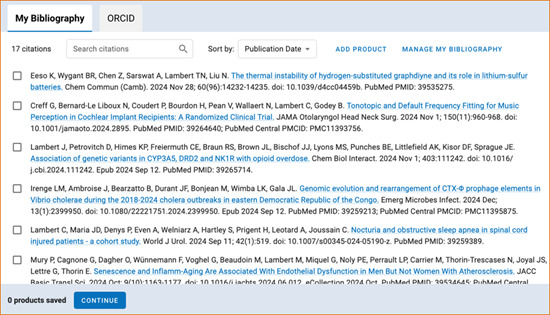
Figure 7. The picker shows your available citations. A publication being in My Bibliography does not mean it is already selected for this biosketch.
Source: NCBI SciENcv Help Manual, updated May 8, 2026. Select the image to view it at full size.
If a publication is missing
Use Add product to search PubMed by author or title, select the correct citation, and add it to My Bibliography. For a product not indexed in PubMed, use Manage My Bibliography to add an appropriate manual record. Refresh SciENcv if the new record does not appear. Check authors, title, year, identifier, and any required citation details in the resulting PDF.
Products can include citable, accessible software, datasets, patents, and other outputs allowed by NIH, as well as publications. Use the official product instructions for the citation requirements. For example, a reusable analysis package may show your methods expertise more directly than an unrelated paper.
Keep the citation locations straight: the full product citations go in the Common Form. The Supplement uses short in-text references to those selected products, as described next.
Step 7. Complete the NIH Biographical Sketch Supplement
The NIH-specific section sits below the Common Form in the same document. Work through all three parts. The limits below come from the current NIH Supplement instructions; use the live character counters as you edit.
| Section | Limit | What to include |
|---|---|---|
| Personal Statement | 3,500 characters | Why your background and experience fit your specific project role. |
| Honors | Up to 15 entries | Relevant academic and professional achievements. |
| Contributions to Science | Up to five; 2,000 characters each | The problem, finding, influence, and your own role; each description must also fit within half a page. |
Personal Statement: connect your expertise to the application
Start with your role, explain the experience that equips you for it, and connect that experience to the proposed work. You can refer to relevant ongoing or completed projects from the past three years. Explain relevant productivity interruptions here if you choose, and indicate if you have published or created products under another name.
Illustrative structure — replace with your own facts
I will lead the single-cell analysis for Aim 2. My training in computational immunology and prior work developing reproducible cell-state models prepare me for this role. In our published study (Lee et al., 2025), I designed the analysis workflow and validation strategy. For this application, I will adapt that approach to the proposed cohort and coordinate quality control with the experimental team.
This example is invented to show structure. The cited product would need to be an actual selected product in your own Common Form.
NIH permits short parenthetical references to any of the products in the Common Form, such as an author-year reference or PMID. Do not paste full bibliographic citations or add hyperlinked references in the Supplement. This differs from advice written for the legacy NIH biosketch.
Honors: relevant achievements, not every line of a CV
Include applicable fellowships, scholarships, development awards, and academic or professional honors. Clinicians should include relevant licensure and specialty board certification. If you have no honors, NIH instructs you to enter Nothing to Report in both the Honor and Name of Organization fields, use the current year in Year, and leave the optional End Year blank.
Contributions to Science: describe what you contributed
For each contribution, explain the scientific problem, the central finding, its influence on science, health, or technology, and your specific role. Graduate students and postdoctoral researchers may choose two or three strong contributions. Five is the maximum; it is not a requirement to invent five separate stories.
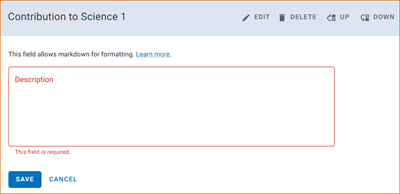
Figure 8. Save each contribution and check its length. The completed entries can be edited and reordered.
Source: NCBI SciENcv Help Manual, updated May 8, 2026. Select the image to view it at full size.
Use short references to the selected Common Form products when relevant. NIH does not allow figures, tables, or graphics within the contribution narratives. The screenshots in this blog illustrate the tool; they do not belong inside your submitted biosketch.
Step 8. Preview, certify, and download the final PDF
- Select View Draft to inspect the layout and content. A draft carries a DRAFT watermark and lacks the required certification; use it for review.
- Return to the form and resolve every required-field warning. The Download PDF button becomes active when required information is complete.
- The investigator whose biosketch this is selects Download PDF, reads the certification dialog, and selects Certify only when the statements are true.
- Open the downloaded PDF. Confirm that it contains both the Common Form and NIH Supplement, the correct ORCID, the intended products and narratives, and the certification.
- Send that file through your institution's application process and attach it in the required biosketch location. Check the assembled application image and validation results.

Figure 9. View Draft is for checking your work. Download PDF opens the certification step for the final document.
Source: NCBI SciENcv Help Manual, updated May 8, 2026. Select the image to view it at full size.
Certification is a substantive step. NIH's research security training policy requires senior/key personnel on applications with due dates on or after May 25, 2026 to certify training completed within the 12 months before submission. Read all statements currently displayed and resolve any uncertainty with your institution before certifying.
Preserve the downloaded PDF. Do not edit, flatten, or print it to a new PDF after certification. NIH's Common Forms implementation instructions say not to flatten the file unless the Application Guide or NOFO specifically directs otherwise. If you need a correction, edit in SciENcv, certify again, and download a replacement.
A useful final filename includes the investigator, project, and date. Keep one agreed final version with your administrator so an earlier draft does not get attached by mistake.
Let an administrator help through delegation
A delegate can prepare and maintain your SciENcv documents from their own account. The investigator still reviews and personally certifies the final content.
- The investigator opens Account settings → Delegates → Add delegate and enters the administrator's email address.
- The administrator accepts the invitation using their own NCBI account.
- The investigator checks the granted access. My Bibliography and SciENcv have distinct permissions; select the access needed for the work.
- The delegate selects the correct investigator's account and prepares the document. For certification, the workflow offers Send Notification to alert the owner.
- The investigator signs in, checks the whole document, and completes certification. Later content changes require certification again.
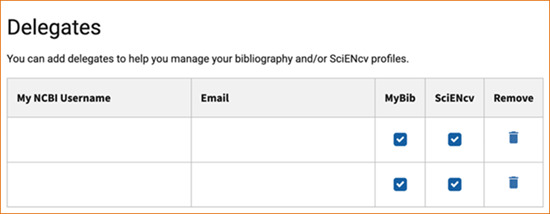
Figure 10. Confirm which access each delegate has. The two permissions serve different parts of the workflow.
Source: NCBI SciENcv Help Manual, updated May 8, 2026. Select the image to view it at full size.
Account linking and final certification require the investigator's involvement. Use the delegated workflow instead of sharing a password. See NCBI's delegation and certification instructions for the current controls.
Fix common SciENcv problems
ORCID is already linked to another NCBI account
This can mean the ORCID is connected to an older account. Avoid creating more accounts as a workaround. NCBI's official troubleshooting instructions describe signing in through ORCID for access to the already-linked account, or requesting help merging accounts. Your old documents may still be in the other account, so check before assuming they are lost.
The ORCID is right in account settings but wrong in the biosketch
Open Identifying Information in the affected document and inspect its PID. Use NCBI's PID correction steps to remove the incorrect value and save the right one. Recheck the eRA profile separately, then certify and export the updated document.
My paper does not appear, or an unwanted citation will not disappear
Check which source tab holds the record. Add or correct My Bibliography entries there; ORCID-sourced records are maintained in ORCID. Refresh the SciENcv page, reopen product selection, and confirm which products are actually selected. Fixing a source record and selecting it for a particular document are separate actions.
Download PDF is gray, or I can only get a draft
Look for incomplete required fields throughout the Common Form and Supplement. A saved draft can still be incomplete. If you are a delegate, ask the document owner to complete certification. A downloaded watermarked draft is not the submission file.
The form looks complete but NIH reports an error
Read the exact validation message. Check the document type, the ORCID inside the PDF against eRA Commons, whether the file was certified, and whether someone altered the PDF after download. A locally readable PDF does not prove NIH has accepted it. Contact the NCBI help desk for SciENcv/account issues or the eRA Service Desk for submission/profile issues, including the exact error and relevant document details.
Final submission checklist
- The document type is NIH Biographical Sketch Common Form, with the NIH Supplement included.
- The investigator's ORCID is correct in the document and linked to the correct eRA Commons Personal Profile.
- Name, organization, primary appointment, education, training, and required appointments are accurate.
- Each product list is within its five-product limit, and the selected records have complete citation details.
- The personal statement fits 3,500 characters; honors do not exceed 15 entries; contributions do not exceed five, with each within 2,000 characters and half a page.
- Supplement references point to products selected in the Common Form, without full citations or hyperlinked references.
- The investigator completed the required training and personally reviewed the certification statements.
- The final file was downloaded after certification and has not been edited, flattened, or replaced by a draft.
- The appropriate file is attached to the application, and the team has checked the assembled application and NIH validation results.
Frequently asked questions
Is SciENcv free?
Yes. You can access the official NCBI service without buying another product. GotGrant is a separate funding-research website; you do not need a GotGrant subscription to use SciENcv.
Can I upload an old NIH biosketch Word file and submit it?
Use the old file as a content reference. For current NIH Common Forms, prepare and certify the document in SciENcv. If the old biosketch already exists in SciENcv, you can use a compatible existing document as the starting source, then check the transferred information carefully.
Does the old five-page biosketch limit still apply?
The NIH Common Form instructions state that the Common Form has no page limit. The NIH Supplement has its own field and contribution-length limits. Follow those current instructions rather than shrinking an old five-page template.
Can an administrator certify for me?
No. Delegates can prepare the document, but the investigator must review and certify it. Leave time for this handoff before your institution's internal deadline.
Can I reuse the same biosketch for another grant?
You can copy an existing compatible document, but review the role-specific personal statement, product choices, appointments, and certification before downloading the new version. A copy carries prior content; it does not verify that the content fits the next application.
Is Current and Pending (Other) Support part of this PDF?
No. It is a separate SciENcv document type with its own disclosure requirements. This tutorial covers the biosketch and NIH Supplement. Prepare Other Support when required for your submission, using the NIH Other Support instructions and your institution's guidance.
Official sources and training video
Sources checked October 15, 2026. The NIH and NCBI pages below govern the requirements; refer back to them when preparing a later submission.
- NCBI SciENcv Help Manual — workflow and screenshots; manual updated May 8, 2026.
- SciENcv training resources, including the official SciENcv for NIH Users: Biographical Sketch video. Check older demonstrations against the current Common Form instructions.
- NIH Biographical Sketch Common Form and NIH Biographical Sketch Supplement — form content and limits, with downloadable instructions.
- NOT-OD-26-079 — May 8 enforcement and research security certification updates.
- NOT-OD-26-017 and NOT-OD-26-018 — training and Common Forms implementation.
- NCBI ORCID account-linking guide and eRA Commons ORCID guide — illustrated account setup. The NCBI linking page still includes historical leniency-period language; use NOT-OD-26-079 for the current enforcement date.
- NCBI: correcting the ORCID in an existing document.
Screenshot credits: National Center for Biotechnology Information, National Library of Medicine, and NIH eRA. Screenshots are reproduced for instruction with source links; their inclusion does not imply NIH or NCBI endorsement of GotGrant.